

Regardless of the brand of smartphone you are using, the Emergency SOS feature is most likely already built into your phone, allowing you to use it in emergencies.
Tips to help keep you and your loved ones safe
Emergency SOS works in different ways. Whether you are in need of medical assistance or other safety concerns, the main purpose of this is to let your emergency services and trusted contacts know that you are experiencing an emergency. problem and where you are.
Apple iPhone
If you use an iPhone, the Emergency SOS feature allows you to quickly contact emergency services in the area where you are experiencing problems, and also sends a signal to your trusted contacts that Do you need help.
You need to set up those contacts first. From the Health app (Health), tap your profile picture, then select Medical ID (Medical ID).
Tap Edit (Edit), then in the Emergency Contacts header (Emergency contacts), select Add emergency contact (Add emergency contact) to select one or more names from your phone book. These people will receive a message containing your location when you use the Emergency SOS feature. Tap Done (Done) when you're done.
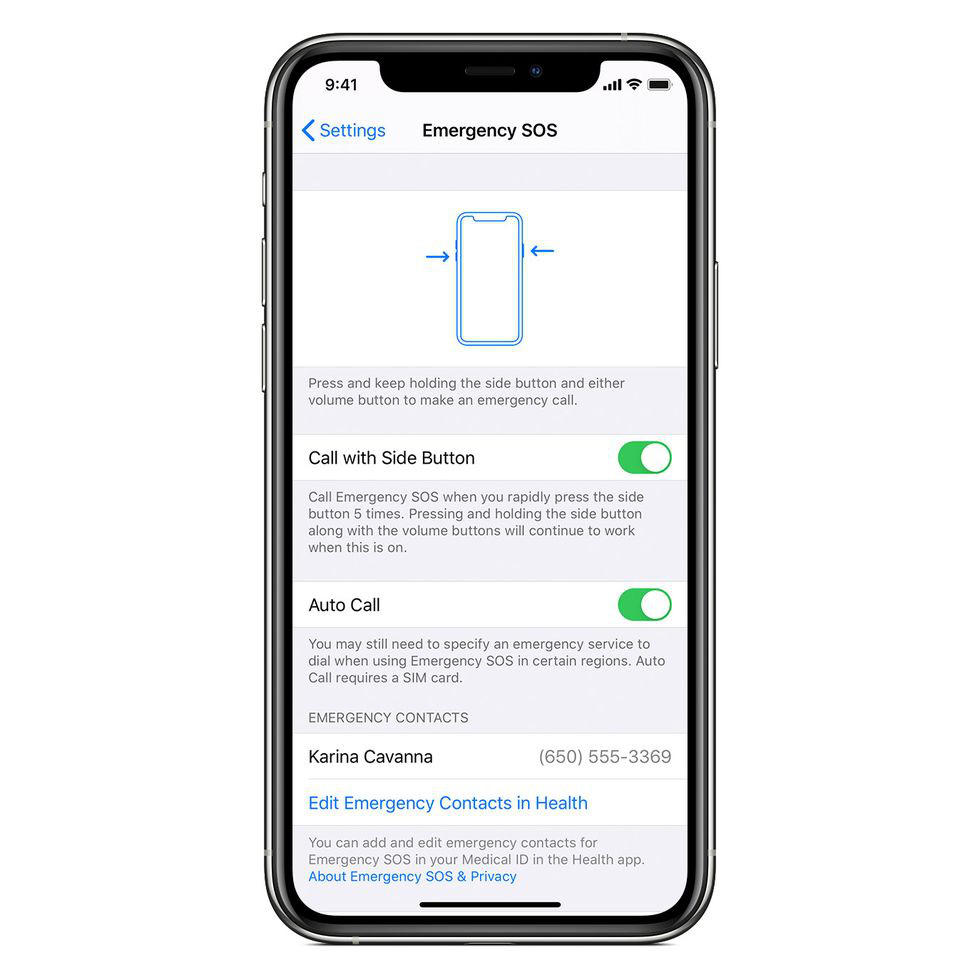
There are some other urgent features that you might also be aware of. Select item Setting and then emergency SOS (Emergency SOS), you can activate the Call feature by holding down the (Call with Hold – call emergency services by holding down the button) and Call with 5 presses (Call with 5 presses – will call emergency services if you briefly press 1 of the 5 side buttons of the phone 5 times in a row). In both cases you will see a short countdown before the call is made.
To actually access the Emergency SOS feature, press and hold the side button of your phone and either of the volume buttons, then using the Emergency SOS slider, you will be immediately connected to services. emergency in your area. You can also hold the side button and volume button if you have previously enabled Call by holding the button.
You never know in advance that you will need help
Samsung Galaxy Devices
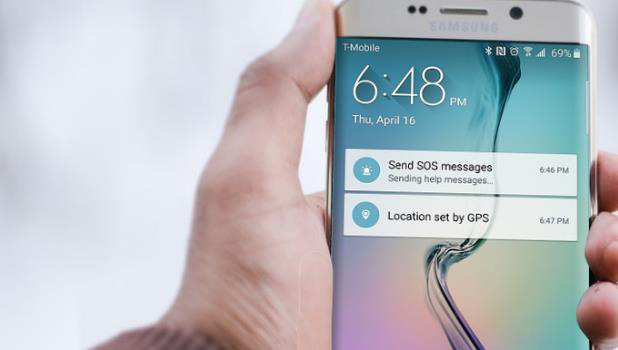
If you own a Samsung Galaxy phone, you can set up the Emergency SOS feature by going to Main Settings and selecting Safety & Emergency (Safety and Emergency). Enable the Send SOS message section (Send SOS messages) and then set the number of quick button presses to use this feature.
Once this feature is activated, your emergency contacts will receive a notification that you need assistance and they will be able to track your location for the next 24 hours. During setup, you can select emergency contacts from your phone book.
On the Send SOS message screen (Send SOS messages), you can also set up a 5-second visual and audio recording of an emergency message to send to emergency contacts after you enable the assist feature. In addition, Samsung Galaxy phones also have a mechanism to automatically call emergency contacts after a support message has been sent, you select the section Tap Auto call someone and then That picks a phone number that you trust.
Return to the Safety and Emergency screen (Safety and Emergency), there are more options you can use: You can edit your emergency contact list and turn on the ability to share your location when you make an emergency call. You can also enable Emergency mode (Emergency mode) helps save battery in case you need to save.
When activated, your phone can automatically call emergency services, record videos and more
Google Pixel phone
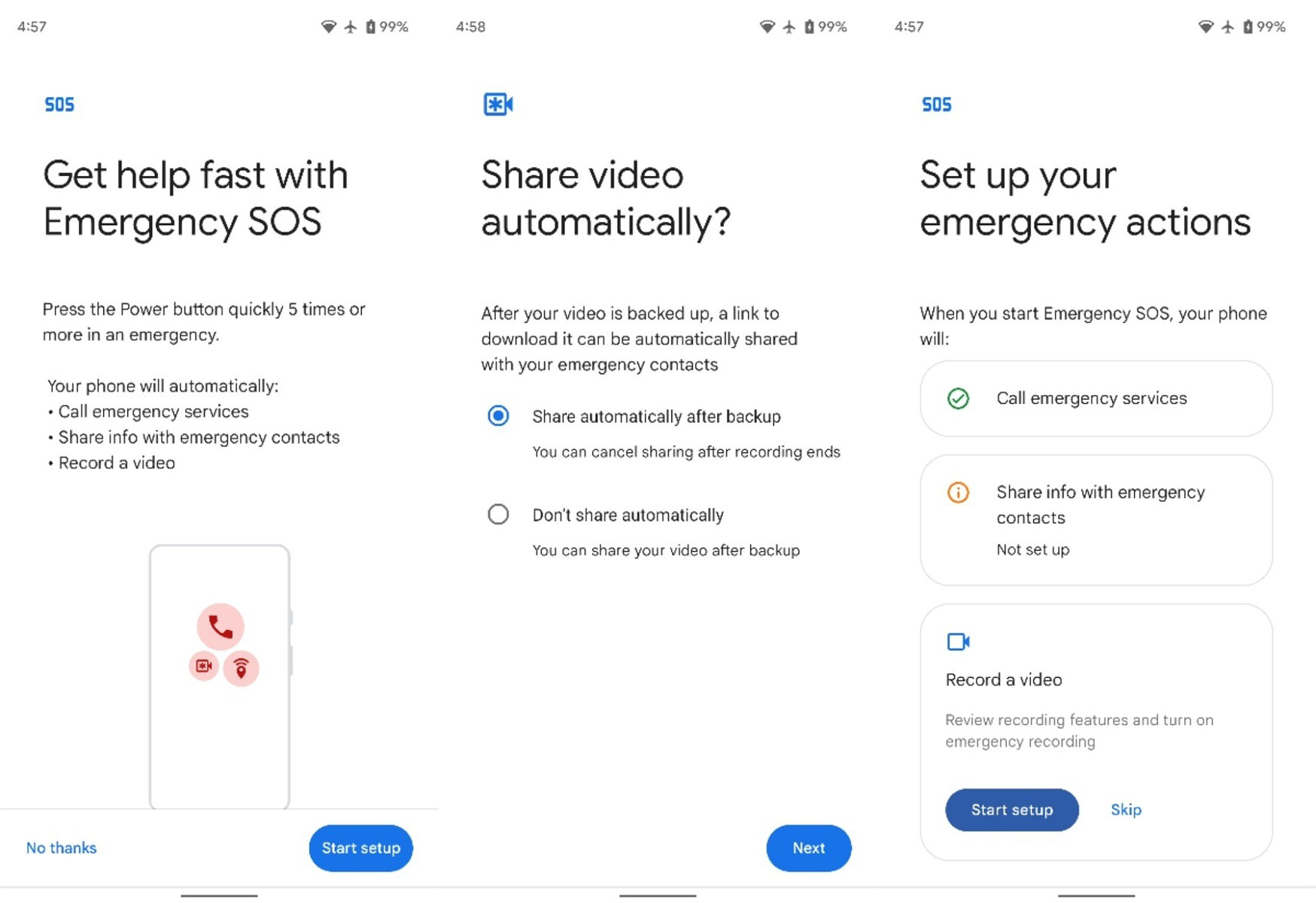
When it comes to Google Pixel phones, you'll see a Safe Apps (Safety App) is pre-installed on the device and this is the Emergency SOS feature. You can access the Emergency SOS (Emergency SOS) and then enable Use Emergency SOS (Use Emergency SOS) to enable this feature on your phone.
Looking down at the bottom, you will be able to set options related to how the Emergency SOS works. With 5 taps of the power button, you can sound a loud alarm, call local emergency services in your area, share your location with emergency contacts, and record video. You can choose to activate 1 of the 4 features mentioned above.
Emergency Contacts option (Emergency contacts) in the Safe Applications section (Safety App). Click Contact (App contact) if you want to select a new contact from your contact list. Use the little x button next to the list if you want to remove someone from your emergency contacts.
Return to the Home screen of Safe Apps (Safety App), you can also enable Car Crash Detection (Car crash detection). If your Pixel phone thinks you're having a problem, it'll play a sound and ask if you're okay – if you don't answer that prompt, your phone will try to contact emergency services and share your current location. You can also check out the preview to better understand how it works.
 English
  Vietnamese