

Turn off System Restore
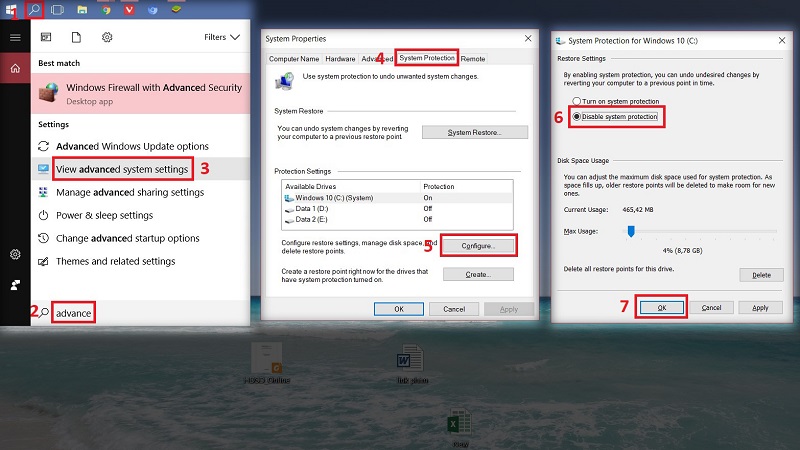
Disabling System Restore is a good way to free up memory and background processes of the system. To turn off System Restore on Windows 10, do the following: go to the keyword search toolbar Advanced system settings, then select tab System Protection, in the default mode this mode is enabled (Protection = On). Press the button Configure, the next window will appear, choose Disable system protection to turn off the System Restore function, then press OK done.
Turn off Startup programs
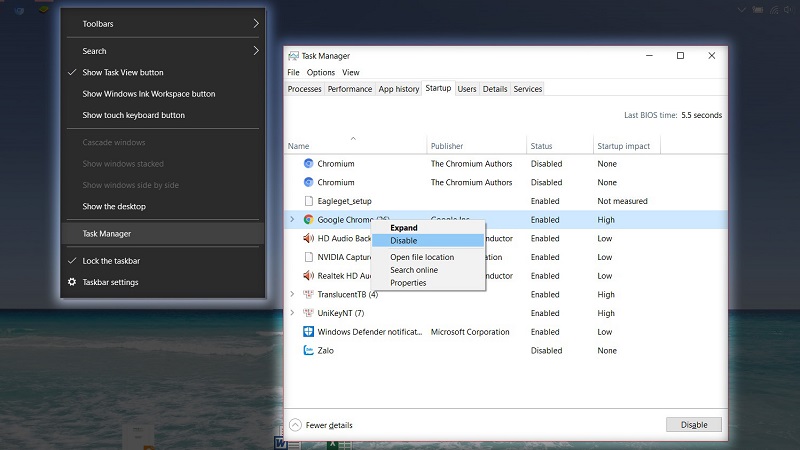
These startup programs will start up with your machine. Turn off unnecessary applications to make your device start up faster. Right click on the taskbar and select Task manager, then select tab Startup. Right-click the applications you don't want to start with Windows and then select Disable to keep them from being activated.
Turn off Windows Defender
Windows Defender is a stable and free antivirus, but it can cause a lot of inconvenience for users who prefer comfort and freedom. Moreover, Windows Defender always runs in the background and consumes system resources. Therefore, to speed up Windows 10 comprehensively, you need to pay attention to this issue.
If you do not know how to turn off Windows Defender, you can refer to This
Turn off the firewall – Windows Firewall
The Firewall feature on personal computers is almost… no one uses it at all. Then what do we turn on the Firewall? Please turn it off. Open Control Panel > Windows Firewall. In the Turn Windows Firewall on or off setting, select Turn Off, then click OK.
Upgrade, replace regular HDD with SSD drive
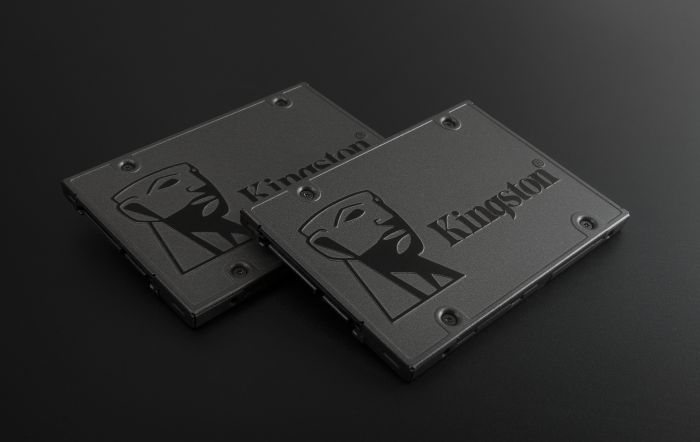
Nowadays, hard drive technology has changed a lot, with a relatively soft price compared to before, but you can still use the latest SSD line with a much better storage capacity than before (at least compared to the previous generation). when SSD first appeared), but data access speed is much faster than HDD, so Windows 10 on your computer also feels much faster.
Turn off graphic effects, transparent icons on Windows 10
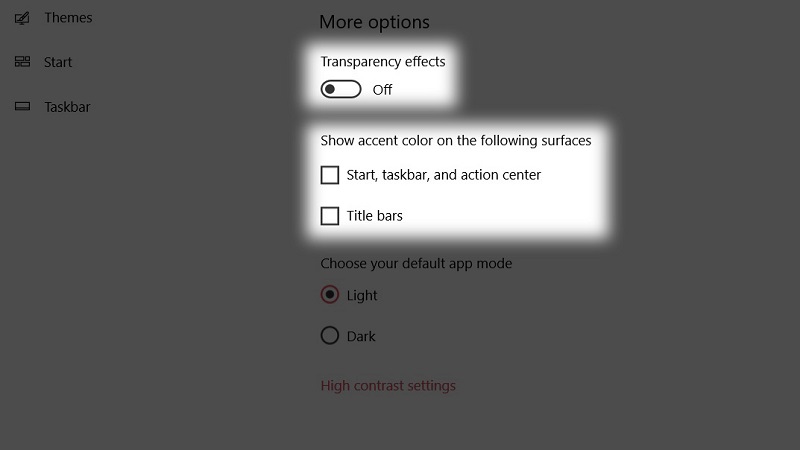
The graphic effect is a pretty drastic change from the time of Windows XP and above, for a well-configured computer, it's OK, very beautiful, but for normal, weak, average machines, it's a torture. On Windows 10, right-click on the Desktop background, select Personalize > select the Colors section. Turn off the Transparency effects option, and uncheck the Start, taskbar, and action center and Title bars boxes.
Prioritize operation mode by performance
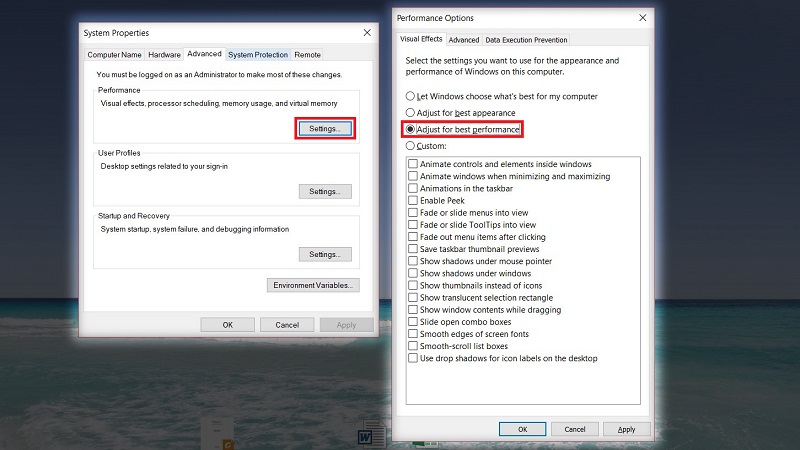
To increase the performance of Windows 10 operating system, open Advanced system settings like how to turn off System Restore first, then select Settings of section Performance. Select Adjust for best performance then press OK done.
Hopefully with some of the steps above, your Windows 10 is up and running faster than before. If you find it difficult to follow the instructions, please contact let us help you.
 English
  Vietnamese