

Beyond features WiFi transmitter default, the TP-Link WiFi Router Modem more features Repeater it mean "Receive WiFi signal from another WiFi transmitter and then play it back”.
This feature is very useful in system design WIFI network indoors, because usually the indoor terrain is often complicated and has many obstacles, leading to the intensity and range of the radios Router greatly affected. The solution to this problem is usually of two kinds.
Solution 1: Buy a long range and powerful router like TL-WR940N or TL-WR1043ND or TL-WR1042ND. But this solution is still not really optimal, because no matter how strong the device and how high the penetration after passing through the thick concrete layer of the 3 4-storey building, it is also weakened at points far from the Router.
Solution 2: Buy one CHEAPouter mid-range like TL-WR841N, TL-WR841ND, can take TL-WR940N As the main WiFi transmitter connected directly to the modem, Then buy weaker Routers like TL-WR740N, or get a strong TL-WR841N, place it in weak or hidden WiFi spots, receive the main Router's WiFi and broadcast back to that area. This solution in total cost is not higher than buying a powerful router and still ensures the same intensity and coverage throughout the building.
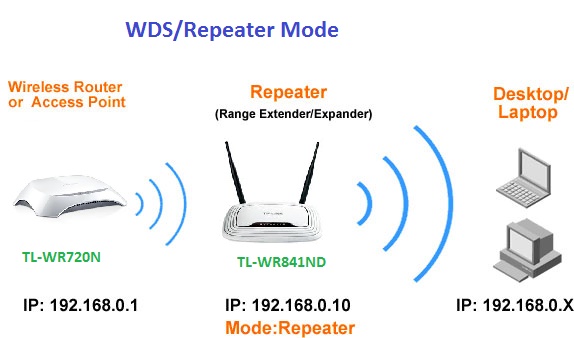
Configure Repeat Wifi – Receive Wifi signal and play it back on Wifi Modem TP-Link TL-WR841ND
For each type of Router, each FirmWare usually has a different configuration. Here's how to configure it TP-Link TL-WR841ND WiFi Router repeat wave of Router TL-WR720N.
Prepare: You need a WiFi router TL-WR841ND, and a WiFi transmitter TL-WR720N (know SSID and password), a laptop.
First you have to turn off your computer's WiFi, why do you have to, because the TP-Link WiFi Router usually has the default admin page IP address of 192.168.0.1. If you don't turn off WiFi and your Laptop is accessing WiFi of TP-Link Router otherwise, will lead to the case of IP conflict.
Step 1: Connect the router to the computer. Use the LAN cable to plug into the upper LAN port wireless router TL-WR841ND (yellow port) and the other end plugs into Laptop. Open a web browser (Chrome, Firefox, IE) type in the address bar 192.168.0.1 You will see the Router's admin page TL-WR841ND.
Note: You can access the address 192.168.0.1 without plugging in a LAN connection cable if you have connected Wifi playing from that Modem.
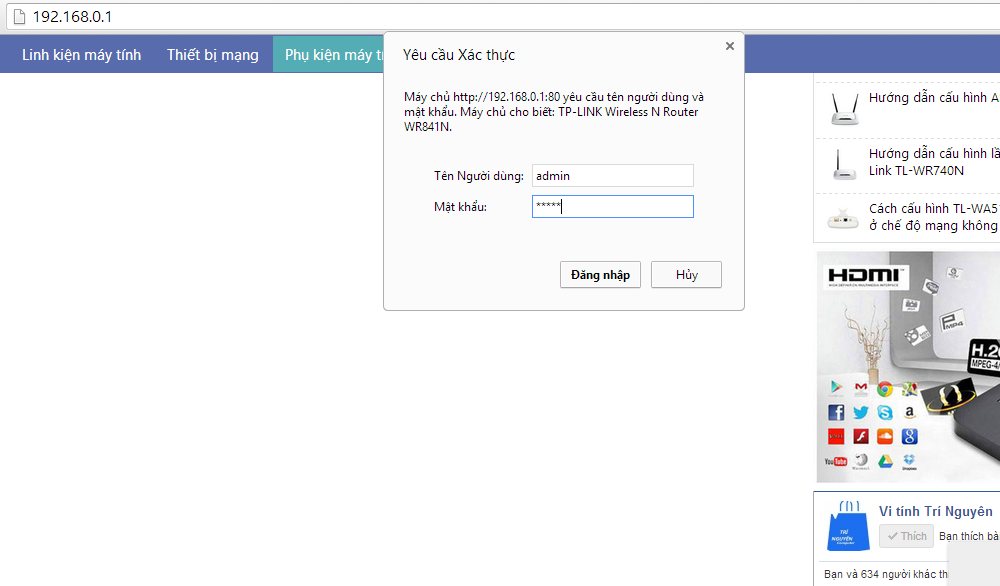
Username and password are admin/admin.
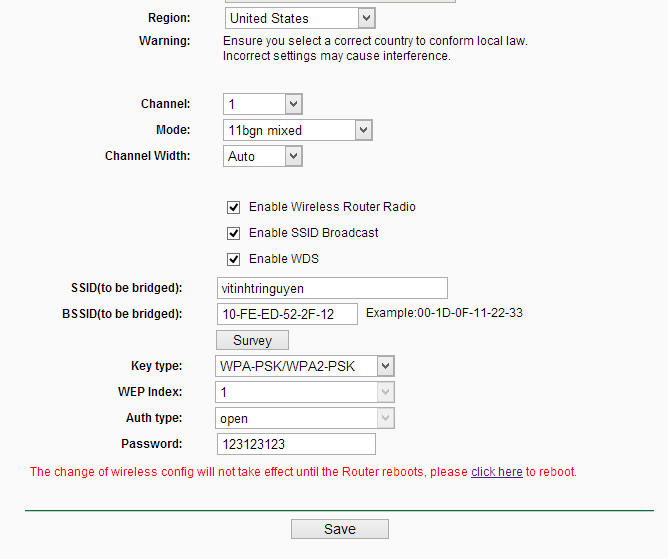
Step 2: Turn on WDS mode to repeater wave. SAfter successful login you will be redirected to your admin page Routers. Continue to select the menu Wireless => Wireless settings. Scroll down below you will see checkbox Enable WDS Bridging, click on it to display the WiFi selection frame to Repeat.
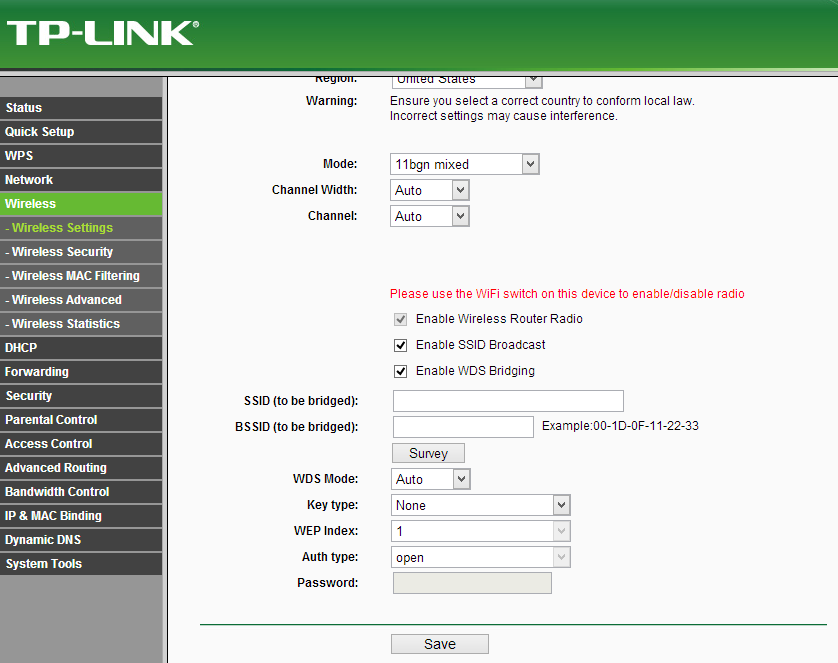
Step 3: Find WiFi waves for recording and playback Press Survey to search for all available WiFi waves and below are the results found.
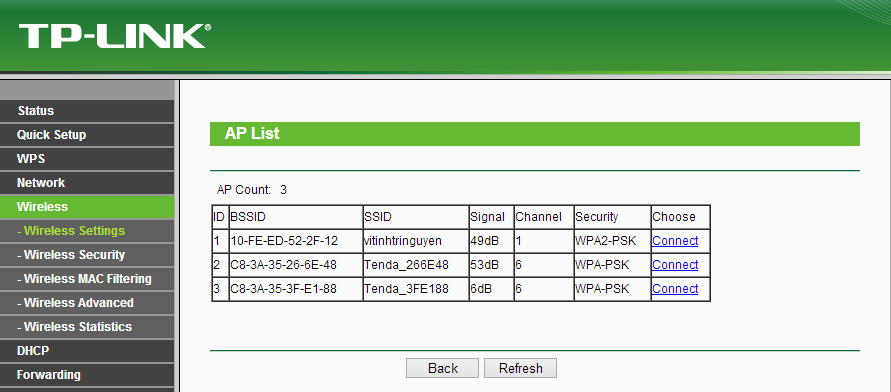
At the list of detectable WiFi, Find the SSID of the WiFi broadcast by TL-WR720N, here SSID is vitinhtringuyen. Click connect to connect.
Note: You also notice the Chanel of the original Wifi above. vitinhtringuyen – Chanel is 1. Security is WPA2-PSK.
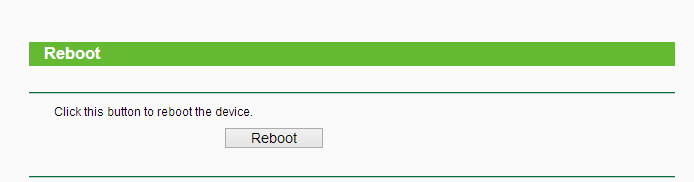
The browser will return to the previous page for you to enter the password of the WiFi you want to repeat and then press Save. Remember one thing you have to choose Chanel in the cell Chanel true to Chanel belong to Routers transmit and select the correct password encryption type in the box KeyType. Many of you follow the steps correctly but forget this step and cannot repeat. After entering the password – Password you have to Reboot the Router to save the changes.
Step 4: Click Reboot to restart the Router
Customize Connection
So you have finished repeating the wave WiFi of TP-link TL-WR720N and replay. But perhaps you will wonder, if so, now want to connect to your WiFi? TP-Link TL-WR841ND Router where to connect? There are 2 options.
Method 1: is to share the SSID of the source router ie the main router TL-WR841ND receive and replay. To do so you must disable DHCP in Router TL-WR841ND. Thus, the 2 routers will share the same SSID. This way is very convenient because when moving, you do not have to reconnect. For example, you put your child TL-WR720on the 1st floor. Con TL-WR841ND On the 2nd floor, it receives and replays on the 3rd floor. If you use 1 SSID, then when you bring your laptop or phone from the 3rd floor to the 1st floor, you will still connect as usual without having to disconnect from the network. TL-WR841ND to switch over TL-WR720N.
Method 2: is to use 2 different SSIDs. To do so, you must enable the DHCP feature on Router TL-WR841ND. And go to Wireless settings to configure the WiFi name as well as set a password for the second SSID.
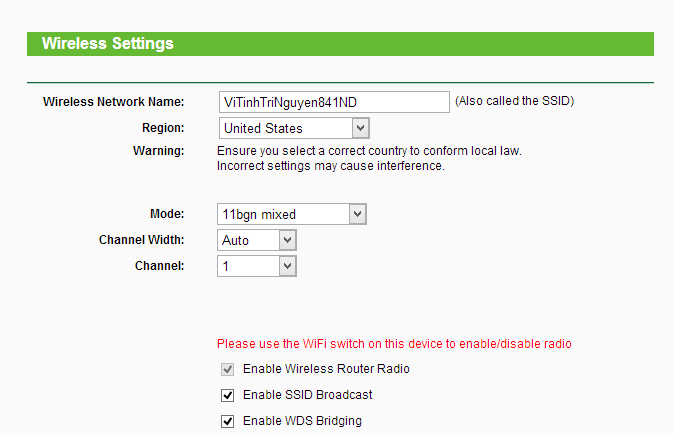
Here I put it as ViTinhTriNguyen841ND to distinguish it from the main router's SSID. Next is to set up a password for this new SSID
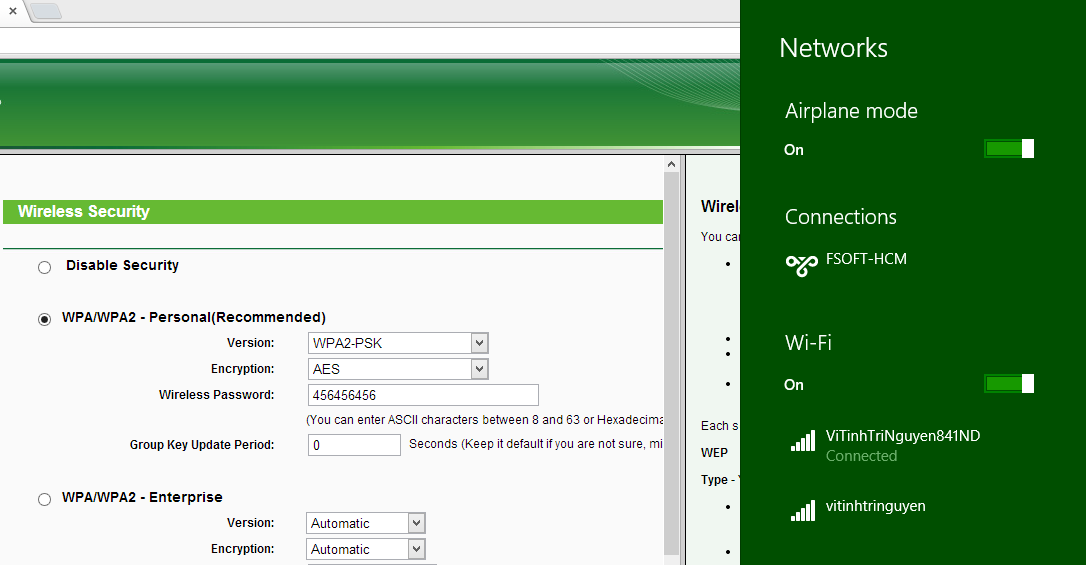
Finally, when you connect to WiFi on your computer, you will see 2 SSIDs. One of the main router and one of the Router Repeater.
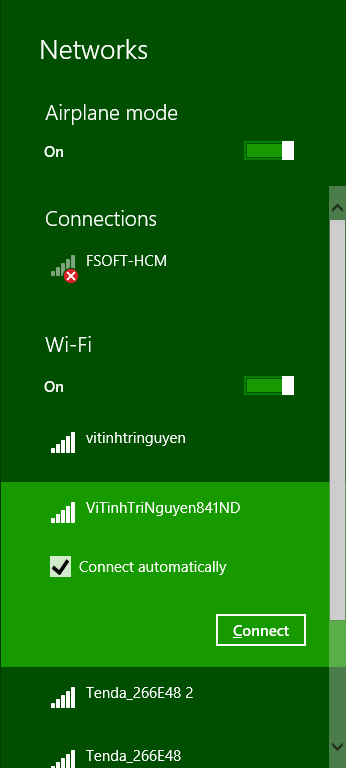
For easy management, you should change the default IP of the configuration page Router TL-WR841ND, because now both Routers have the same admin page IP192.168.0.1.
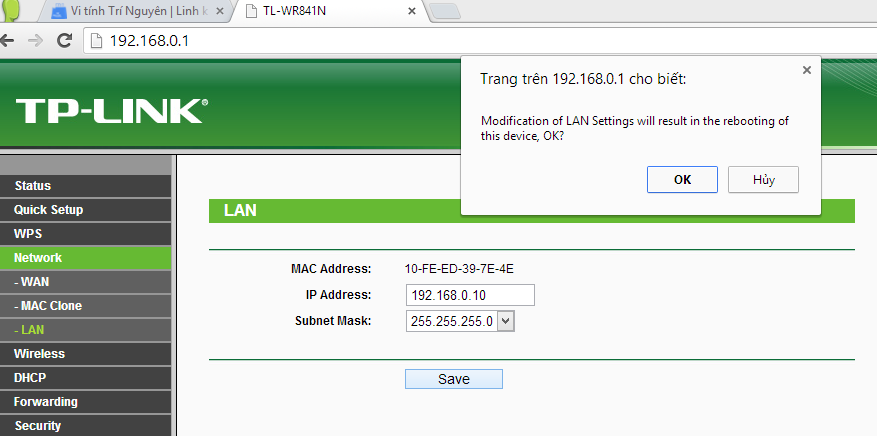
You change it back to 192.168.0.10. So if you want to log in to the main Router's management page, type 192.168.0.1. If you want to manage the TL-WR841ND, type 192.168.0.10.
Finally, unplug the lan cord that was originally plugged in and try to connect to TP-Link TL-WR841ND WiFi Router by WiFi.
 English
  Vietnamese