How to enable and set up parental controls on Windows 11
You can control and view reports about your child's Windows 11 computer activities.
These days, it's hard to stop your kids from seeing inappropriate things online. Especially with the use of computers for online learning. However, you can still have some control over what your child watches or searches for on a Windows computer through the Your Family feature that Microsoft integrates into Windows.
In this article, we will take a look at how to enable and set parental controls on Windows 11, thereby allowing you to prevent children from viewing adult content and devices. Set time limits on your computer when necessary. As follows.
How to enable and set up parental controls on Windows 11
First, you need to create a new Microsoft account to use it for your child. You can visit the "account.microsoft.com” and proceed with initialization.
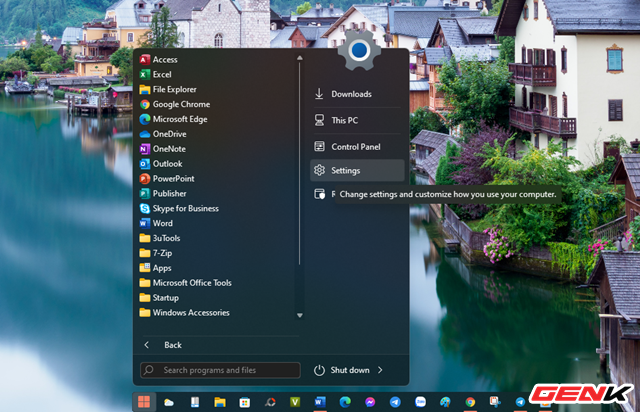
After creating a new account for your child, go back to your Windows 11 computer and go to the Start Menu, click Settings.
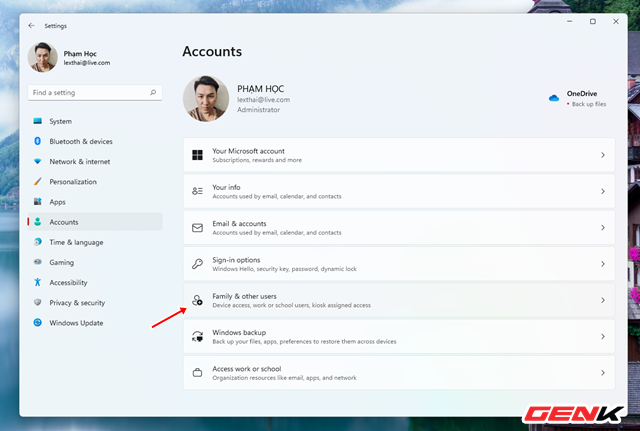
The Settings window appears, click on Accounts and click on the "Family & other users" line in the right pane.
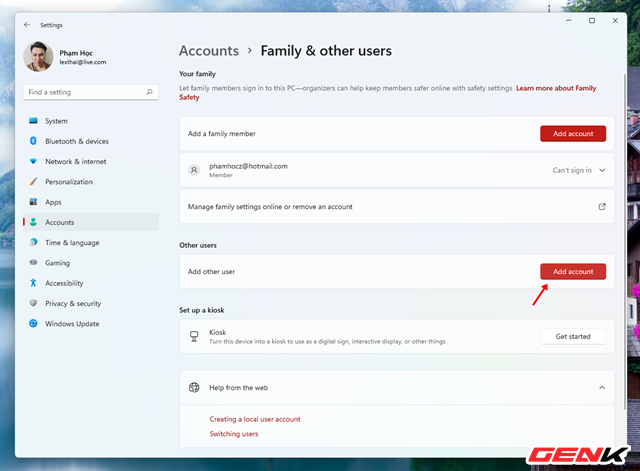
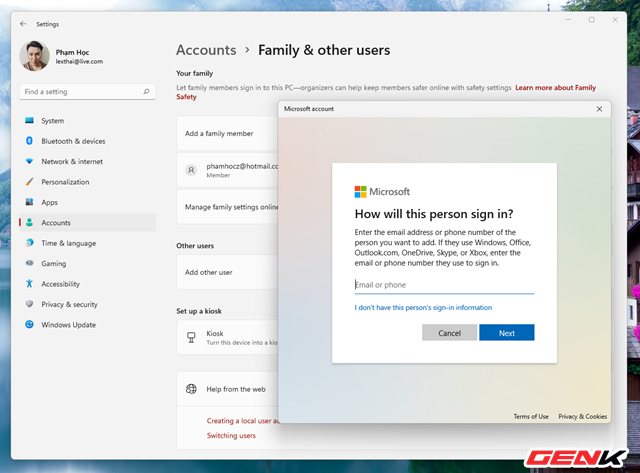
Find the “Other users” section and click “Add account”.
The login window appears, enter the account you just created.
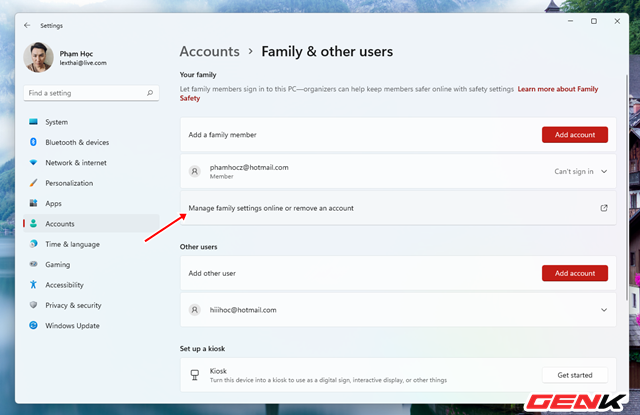
Once you have completed logging into your account, click on the "Manage family settings online or remove an account" line above.
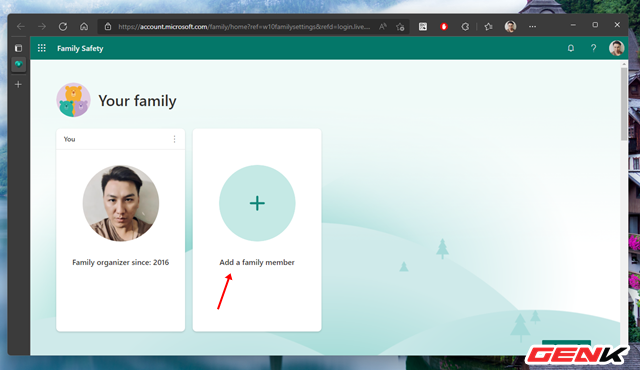
A web browser window will launch and access your Microsoft account information web page. Click on “Add a family member”.
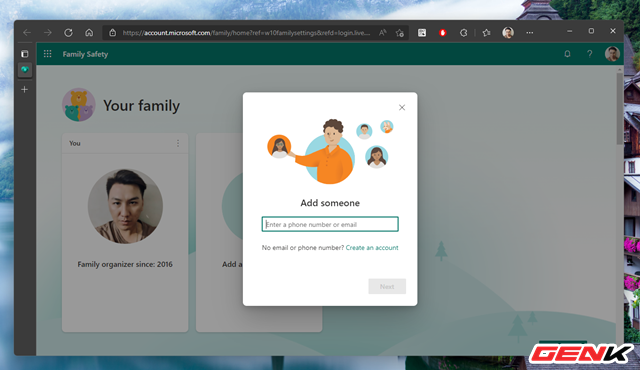
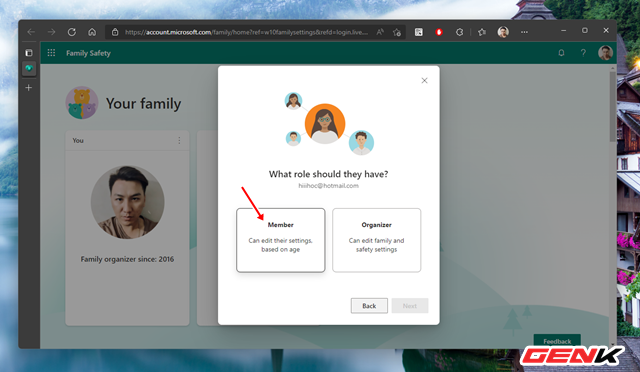
Enter the Microsoft account you let your child use.
And choose for it to be in the “Member” group.
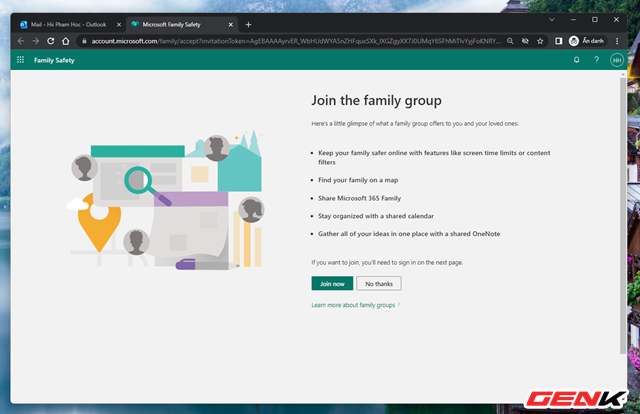
This action will ask you to access the child's mailbox and confirm participation.
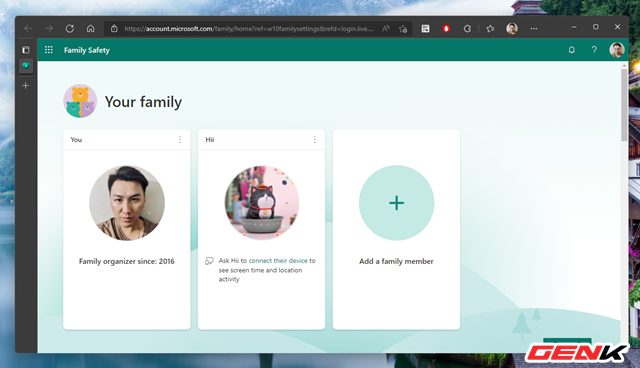
Once confirmed, the child's account will appear in your Family.
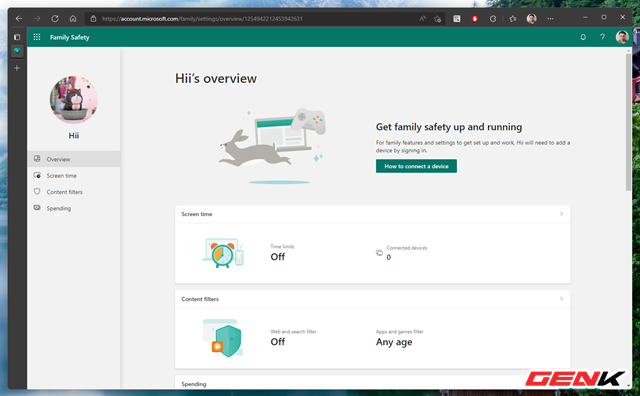
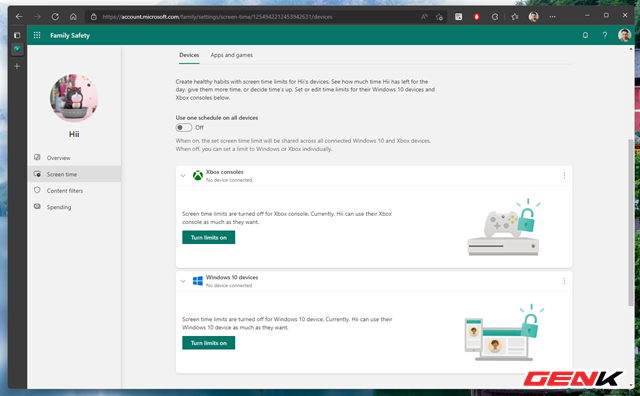
When clicking on the child account, the control and reporting tasks will appear. Depending on your purpose, you can enable tasks accordingly.
In the screen time limit, you can also limit the time you spend using the computer, playing games or using software and applications.



 English
  Vietnamese