

Whether you're using Google Maps or the Emergency SOS feature on your iPhone, there are ways to quickly share your location with loved ones.
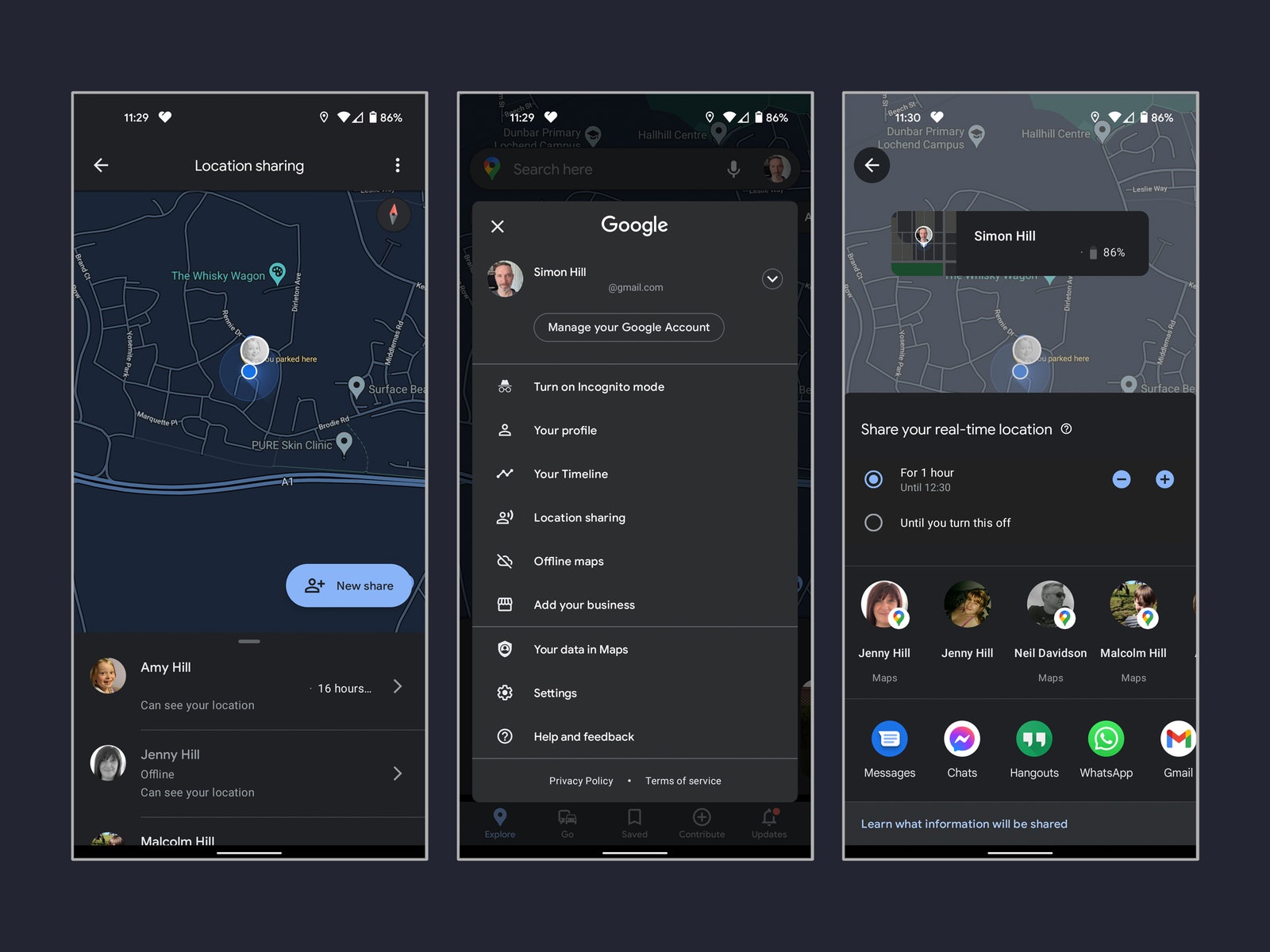
Google Maps application interface – Photo: GOOGLE MAPS
Page Wired Instructions on how to share your physical location on the two most popular “way finder” tools of iPhone and Android devices.
* Share location using Google Maps
Google Maps is currently the world's most popular digital map application. To share your current location, follow these steps:
1, Open the Google Maps app (available on the app stores of both Android and iOS operating systems).
2, Tap your profile picture in the top right corner of the screen. Sign in with your Google account if not already signed in.
3, Click on Location sharing and Share location.
4, Choose how long you want to share location for.
5, Select the people you want to share the location with (now you can allow Google Maps to access the phone book).
6, If you want to share your location with someone who doesn't have a Google account, click Copy to clipboard (for Android devices) and paste the link into an email or message sent to that person. With iPhone devices, click More options and send the link via iMessage or through another optional application.
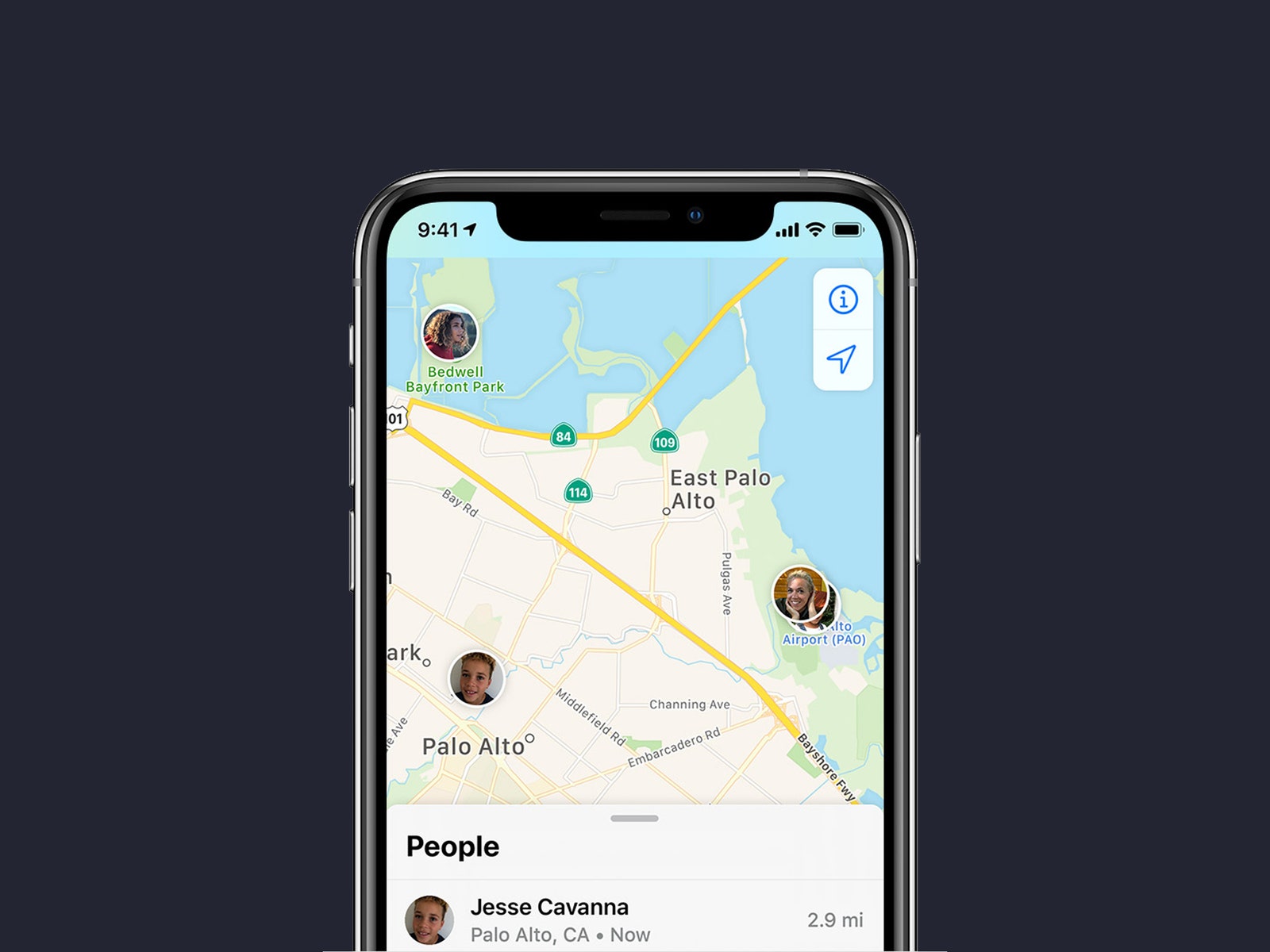
Apple's Find My application interface – Photo: APPLE
* Share location using Find My app
This tool is intended for people who use Apple devices such as iPhone, iPad or iPod Touch.
1, Open the Find My app and select the People tab.
2, Select Start Sharing Location.
3, Enter the name or phone number of the person you want to share the location with and press Send.
4, Select the time you want to share and press OK.
You can stop sharing your location on the same People tab by clicking on the person involved and selecting Stop Sharing My Location.
You can also quickly stop sharing your location with everyone by selecting the Me tab and turning off the Share My Location option.
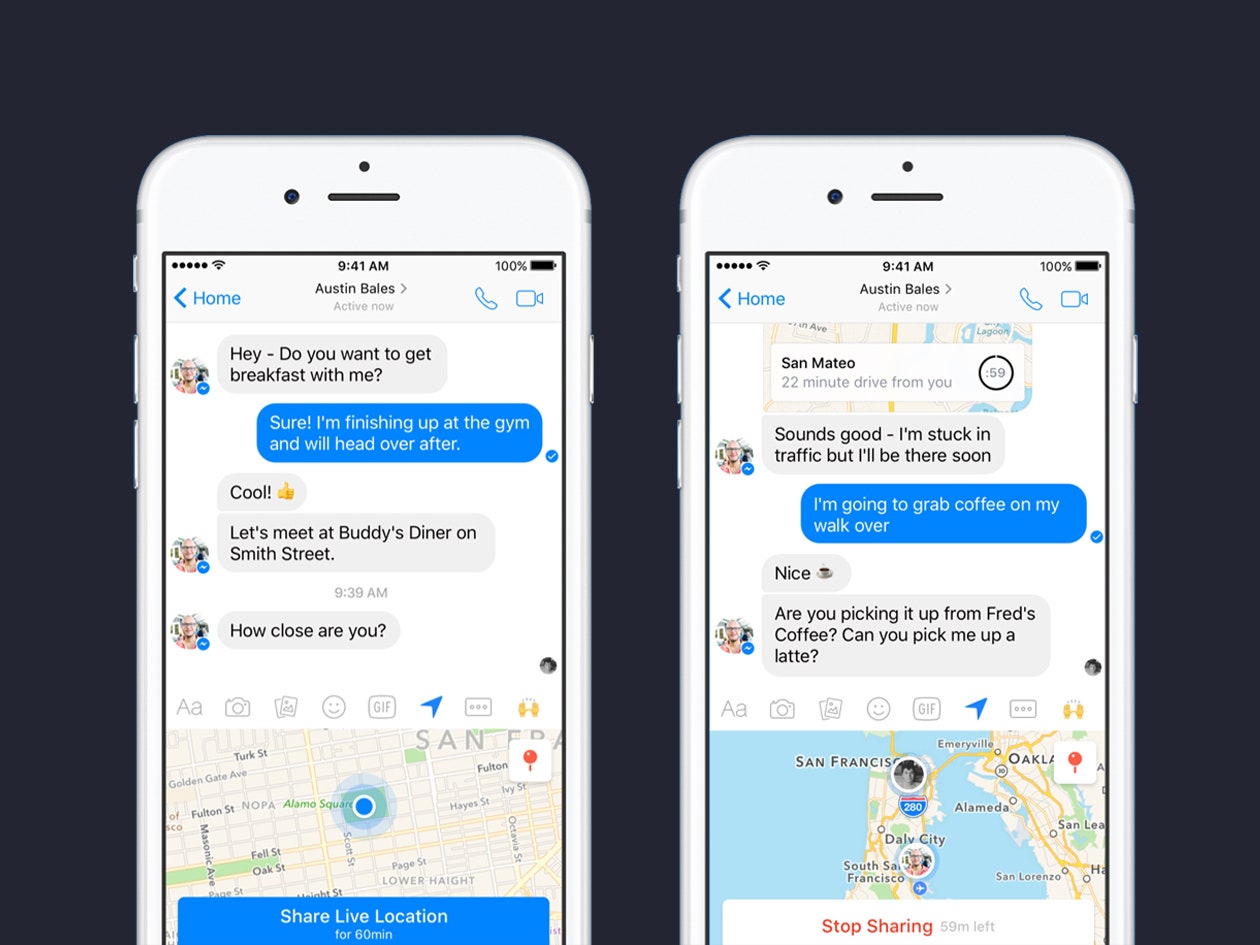
Location sharing interface on Facebook Messenger – Photo: FACEBOOK
* Share location using Facebook Messenger
If you're talking to someone/group of people and want to share your location right in Facebook's Messenger app, you can do it right away without leaving the app. This method works on both Android and iOS devices.
1, Open the Messenger application, select a new conversation with the person/group of people who need to share the location.
2, Click the Location icon (arrow) or click the 4 dots icon to select Location.
3, You may have to grant location access to Messenger.
4, On the digital map, click on the blue bar with the words Share Live Location.
5, Once selected, your location information is shared for an hour and you will see a Stop Sharing option and a countdown timer next to it.
* Share location using Emergency SOS feature on iPhone
iPhones with Emergency SOS feature, when activated, it will send text messages and share your location to contacts when the emergency has been set up.
1, Open the Health app, click on the account profile picture, then select Medical ID, Edit, drag to Emergency Contacts. Here you click the plus icon to add your emergency contacts when needed.
To activate the Emergency SOS feature, press and hold the power button together with either of your phone's volume controls, or if you're using an iPhone 7 or earlier, quickly press the power button 5 times.
3, Drag Emergency SOS to the emergency call services section so that the device can trigger messages and share location with emergency contacts when needed.
* Share location on Zalo app
For those who are using the Zalo application to communicate regularly, if they need to share their location with others, they need to take the following steps:
1, Select the person you want to share the location with. Select the plus icon (+) in the right corner of the message writing section.
2, Select Location.
3, Allow access by going to Settings, Zalo, select Location, select When using the application.
4, Back to the Zalo application, select the location sharing mode with the options:
Select LIVE – Share your way to get location updates even while you're on the go.
Select Send current location to send real-time location.
Choose the locations near you suggested below.
5, Confirm the request to send the location.
From the Internet
 English
  Vietnamese